 Sempere
Using Sempere
Writing tools
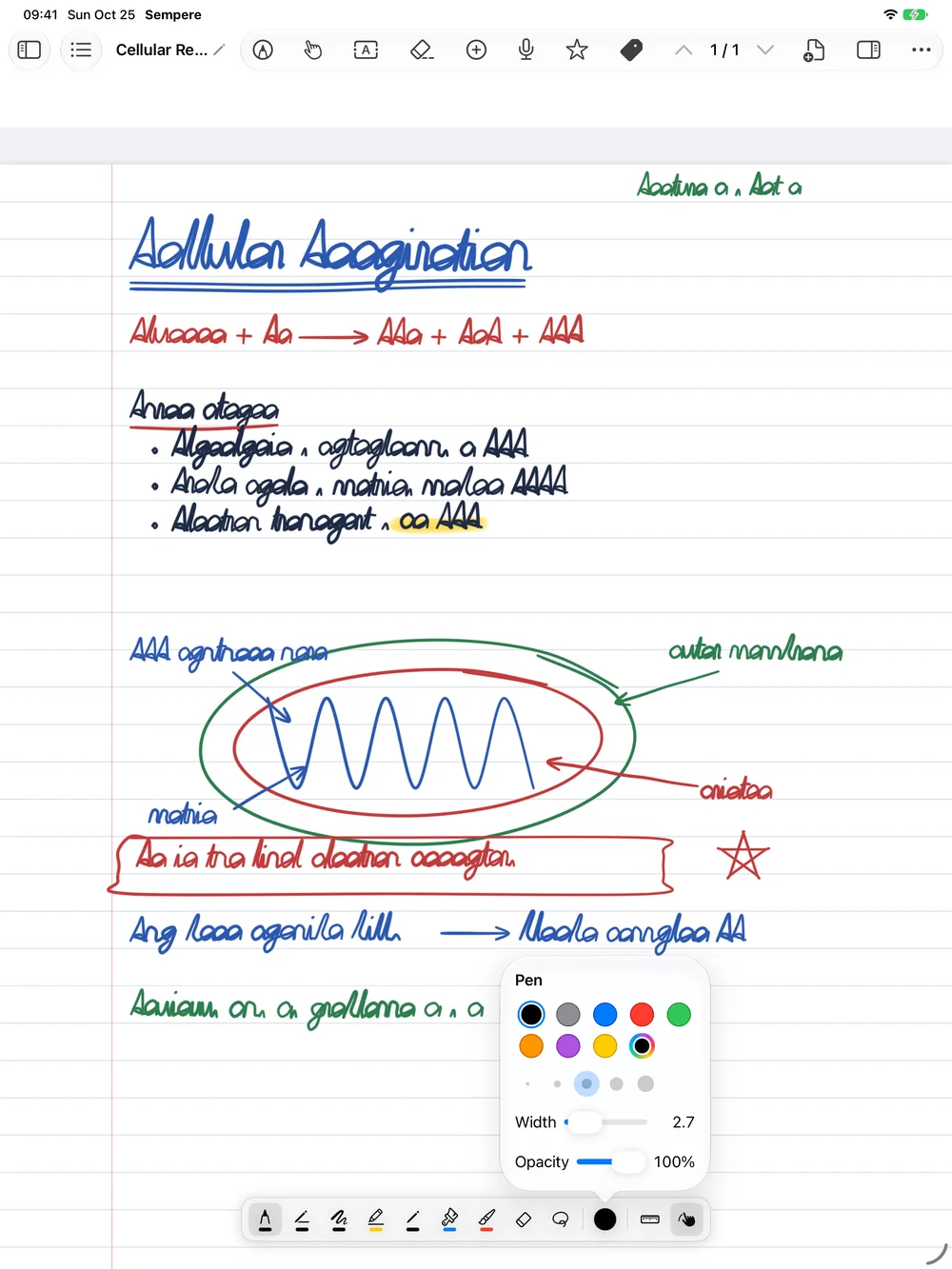
The drawing palette, each ink and its settings, the erasers, the lasso and the ruler, with a Pencil, a finger or a mouse.
The drawing palette sits at the bottom of a note while you Annotate. Pick a tool with one tap; tap the selected tool again to open its choices (color, width, opacity). Each tool remembers its own settings across notes, windows and launches.
Inks
The inks are Apple’s PencilKit inks.
| Tool | Character | Default color |
|---|---|---|
| Pen | Smooth ink that follows your pressure | Black |
| Monoline | One even width, like a technical pen | Black |
| Fountain Pen | A nib: the line varies with its direction | Black |
| Marker | A wide, see-through highlighter | Yellow |
| Pencil | Graphite, with grain | Black |
| Watercolor | Soft, wide washes | Blue |
| Crayon | Wax, with grain | Red |
Every ink offers:
- Color: eight swatches (black, gray, blue, red, green, orange, purple, yellow) and Other Color for any color you like;
- Width: five quick widths and a slider for anything in between;
- Opacity: a slider in the choices popover, or a menu of 25, 50, 75 and 100 percent when the choices sit in a wide palette.
Strokes are stored as vectors, so they stay sharp at any zoom and in exports. Pencil, Watercolor and Crayon have texture on screen; in PDF, PNG and SVG exports their texture is approximated.
Erasers
The Eraser works in one of two modes, chosen in its choices:
- Object Eraser (the default) removes whole strokes you touch. Its size is Fine, Small (the default), Medium or Large; the Object Eraser Size button in the note’s toolbar changes it while you annotate.
- Pixel Eraser erases only where you rub, cutting strokes in two. It has five widths.
You can set the default mode and size in Settings ▸ Writing ▸ Editor.
Lasso and ruler
- Lasso: draw around ink to select it, then drag the selection to move it, or tap it for the edit menu (copy, delete and more).
- Ruler: shows a ruler on the page for straight lines; tap it again to hide it. It is a button in the full palette; the compact palette has none, so on the Mac use Tools ▸ Ruler.
Text, pictures and other items
The palette is for ink. Typed text is the Text button in the note’s toolbar (tap the page where the box should go; the tool places one box and then returns to the previous tool); pictures, PDFs, video and equations are in Insert. See Text, equations, images, PDFs and video.
Full and compact palette
The full palette (iPad and Mac) shows every tool. The compact palette shows Pen, Marker, Eraser and Lasso (plus whatever else you picked) and suits small windows. The iPhone always uses it. Switch with Settings ▸ Writing ▸ Editor ▸ Compact Palette, by holding the Annotate button on the iPad, or with Tools ▸ Use Compact Palette (⌥⇧⌘P) on the Mac.
Pencil, finger and mouse
- iPad. The palette’s Draw with Finger switch decides whether a finger draws too while you annotate. Until you change it, the iPad’s own setting (Settings ▸ Apple Pencil ▸ Only Draw with Apple Pencil) decides. In Reading and Hand, fingers scroll and select, and a Pencil stroke switches to Annotate. The Pencil’s double-tap and squeeze follow the iPad’s Apple Pencil settings: switch to the eraser, back to the last tool, or show the palette’s choices.
- iPhone. While annotating, one finger draws and two fingers scroll. The compact palette has Undo and Redo buttons.
- Mac. The mouse or trackpad draws in Annotate, at an even width (there is no pressure). Settings ▸ Writing ▸ Editor ▸ Smooth Mouse Strokes (Off, Light or Strong) evens out shaky lines. The Drawing Tools menu in the note’s toolbar and the Tools menu pick any tool, with shortcuts: Pen ⌥⌘1, Marker ⌥⌘2, Pencil ⌥⌘3, Eraser ⌥⌘4, Lasso ⌥⌘5, Text ⌥⌘6, Ruler ⌥⌘R. ⌥⌘[ and ⌥⌘] make the object eraser smaller and larger. The same menu has Annotate (⇧⌘P) and Hand (⌥⌘7).
Undo
On the Mac use Edit ▸ Undo (⌘Z) and Redo (⇧⌘Z). On the iPhone use the palette’s buttons. On the iPad, use the system’s undo gestures (a three-finger swipe left, or a three-finger double tap) or ⌘Z on a keyboard. For anything older, the note’s version history has every save.
Dark pages
With dark note pages (Settings ▸ General ▸ Note Pages ▸ Dark), the palette shows colors as the page shows them. Your ink is stored as drawn on light paper, so exports look the same either way.