 Sempere
Using Sempere
Sempere on iPhone
Layout, gestures and menus on the iPhone.
Sempere on the iPhone writes, searches, records and organizes like the iPad app. A note opens in Reading, so a stray touch never marks the page.
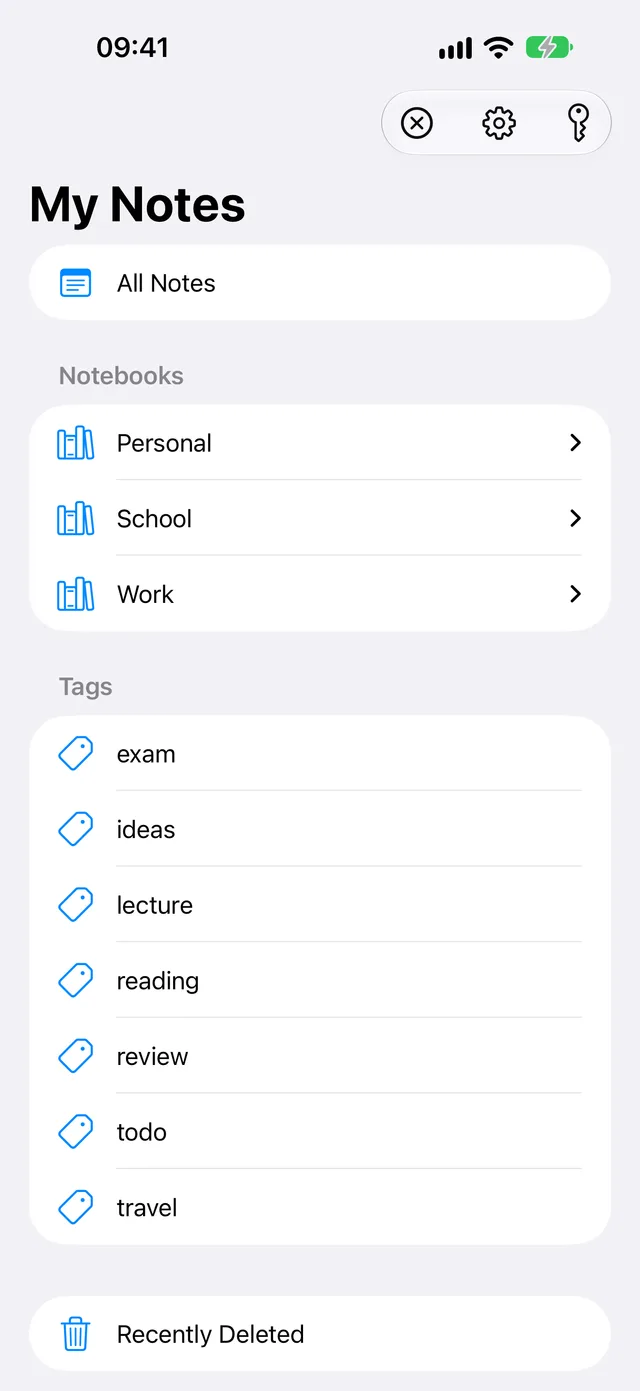
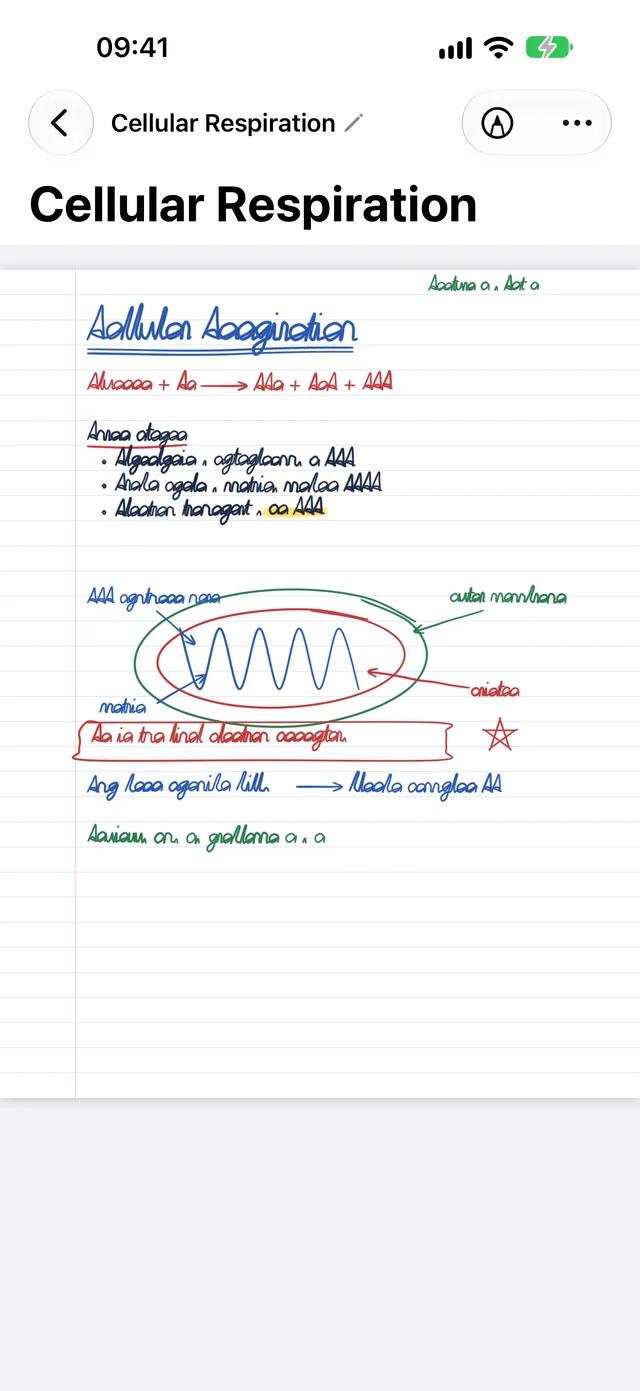
Layout
The iPhone shows one screen at a time: the vault (sidebar), then a note list, then a note. Swipe back from the left edge to go back. A large iPhone in landscape can show columns side by side.
In the note list, New Note stays in the bar; Select, Sort, Handwriting, Import PDF… and Import from Notability… are in the ⋯ menu.
Reading a note
In Reading, nothing draws or selects.
- One finger scrolls, two fingers pinch to zoom (up to four times).
- In Reading, in a paged note at the fitted width, swipe sideways to turn the page. The bar at the bottom shows “n / N” with previous and next.
- The top bar keeps the title, Annotate, Hand and ⋯. Text (while annotating), Insert, Recordings, Favorite and Tags are in ⋯, followed by Pages, Paper, All Recordings…, Rename, Export, Save Version, Version History and Keep Screen On.
Writing
Tap Annotate. One finger draws; two fingers scroll. The palette is always the compact one (Pen, Marker, Eraser, Lasso), with Undo and Redo. The page bar hides while you annotate. Hand selects and moves items: a tap selects, a hold shows the item’s menu, a drag moves it.
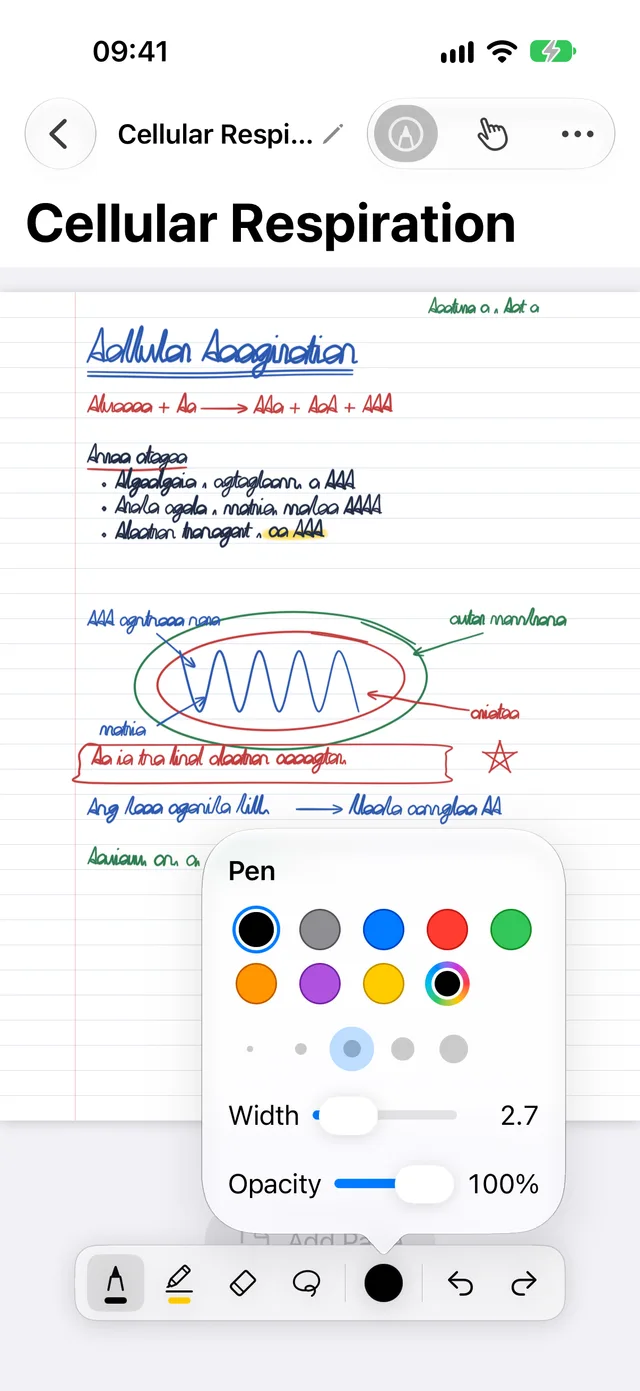
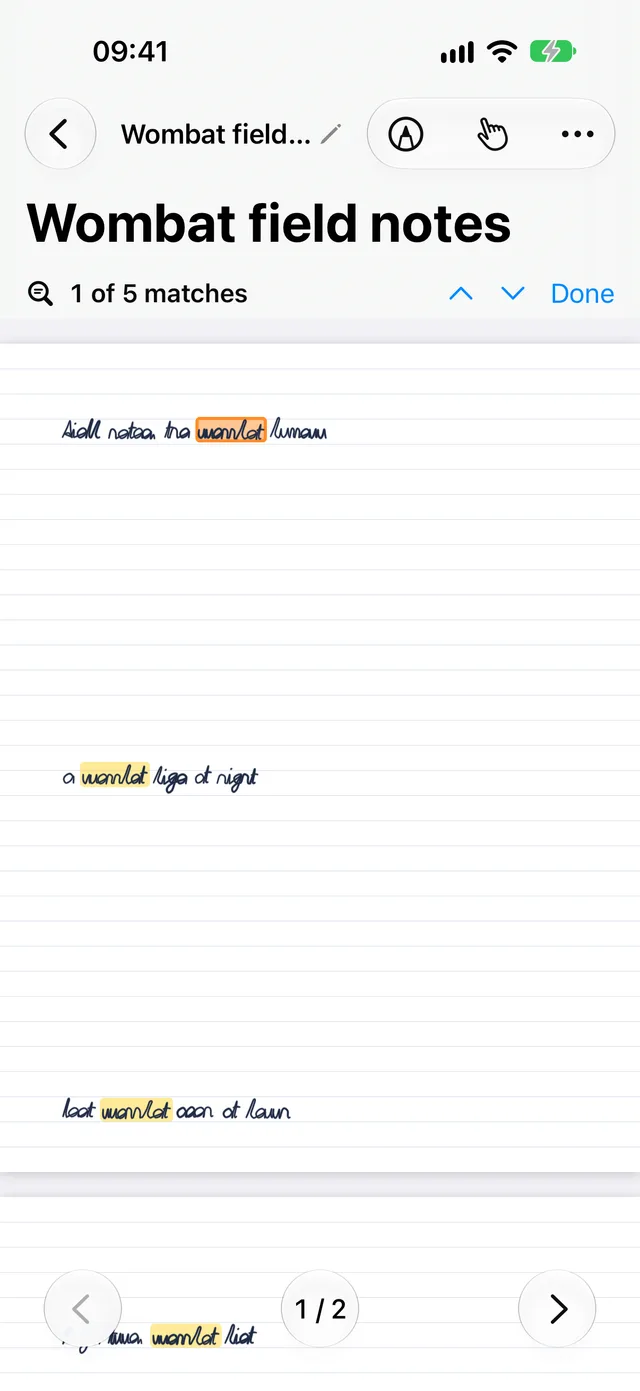
The camera is in Insert: Take Photo… and Record Video….
Voice notes
Capture from the Lock Screen widget, Control Center, the Action button or Siri. See Quick voice notes.
Unlocking
Open the vault from a sync target (Open Vault… in iCloud Drive, or Open from WebDAV…), choose Join This Device…, and approve it on the device that manages devices. After that the vault opens by itself, or after Face ID with Require Face ID to Open on. See Add a second device.