 Sempere
Getting started
Create your vault
A vault is the folder that holds your encrypted notes. Make one, save its recovery key, and choose where it syncs and backs up.
A vault is a folder named something like My Notes.sempere. Everything you write goes into it as encrypted files. You can keep several vaults (say, one for work and one for home), each with its own keys.
Each device keeps the vault inside the app, so it opens with or without a connection. To use it on other devices, give it a sync target. To protect it, back it up. Both are optional, and you can set them up later.
Make a new vault
When no vault is open, Sempere shows its welcome screen with New Vault…, Open Vault…, Open from WebDAV… and Restore from Backup…. On the Mac, the same commands are in the File menu (New Vault… is ⇧⌘N).
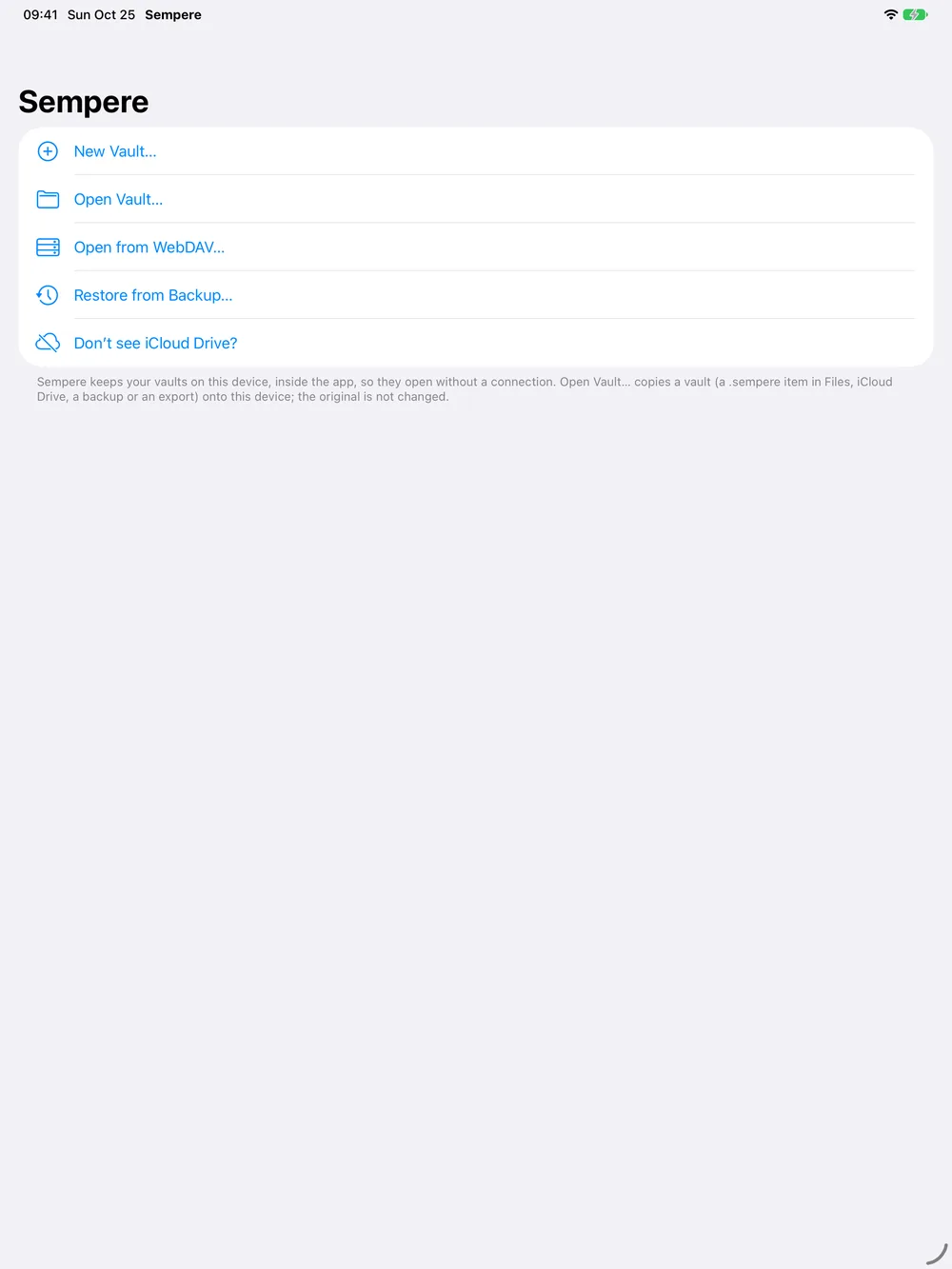
- Tap New Vault….
- Under Name, type a name. It becomes the folder’s name, with
.sempereadded. - Under Recovery Key, leave Generate a new key selected.
- Under Sync With, choose nothing to keep the vault on this device only, or tap Choose Folder… and pick a folder, for example in iCloud Drive. The vault syncs both ways with a
<Name>.semperefolder there, and your other devices open that folder to join. Add a WebDAV server afterward in Sync Targets (Where to keep your vault). - Optional: under Back Up To, tap Choose Backup Folder… and pick a folder on another drive or provider. Sempere writes a
<Name>.sempere-backupsnapshot there for recovery. No device syncs from it (Backup strategy). - Optional: turn on Also store the recovery key under a passphrase. This puts a copy of the recovery key, locked with a passphrase you choose, inside the vault. The passphrase must be strong: Sempere refuses one it estimates below about 70 bits. Suggest a Passphrase fills in seven random words. Anyone who can read your storage can try passphrases on that copy offline, so never use a passphrase you use elsewhere.
- Tap Create.
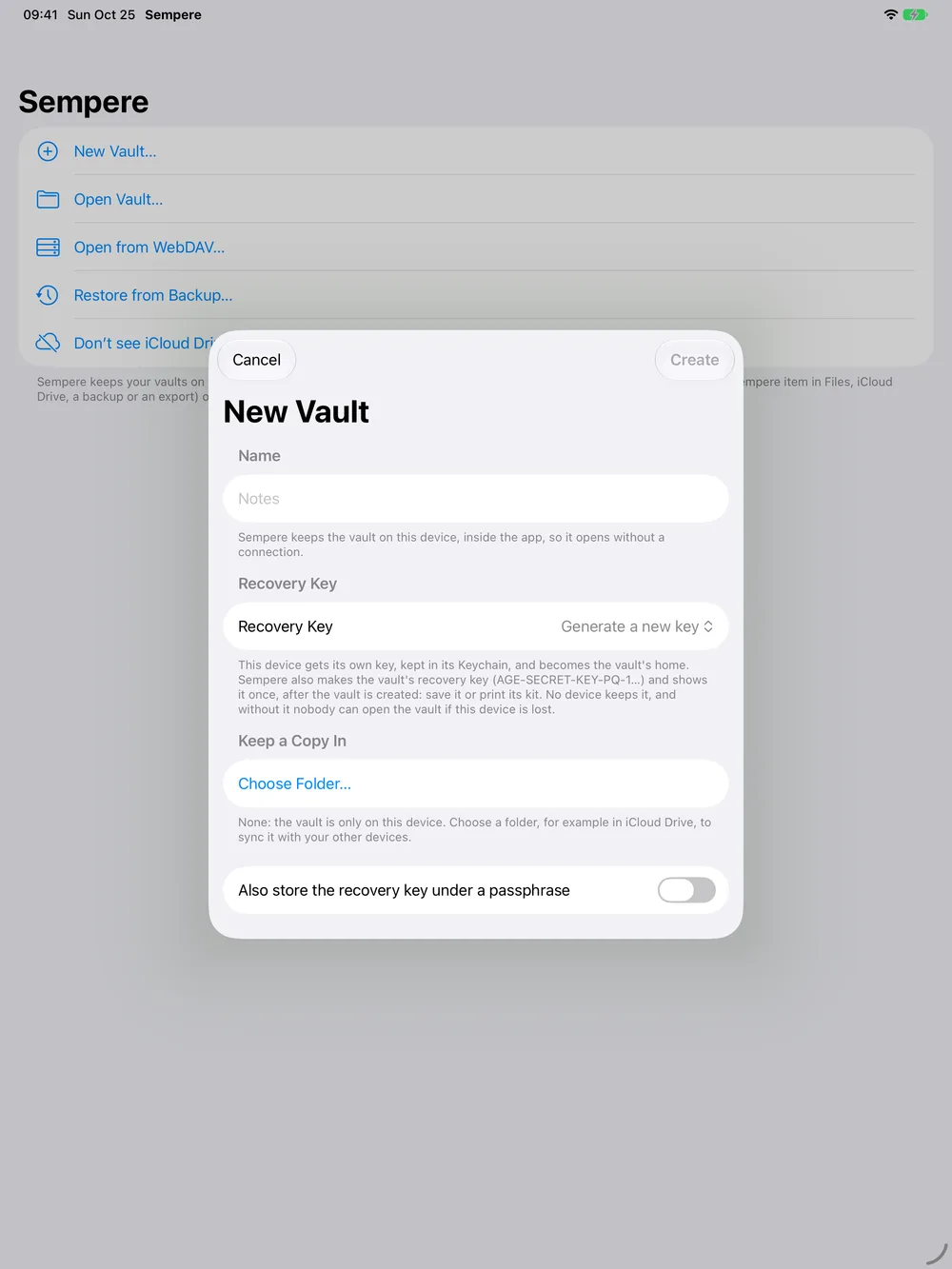
This device becomes the vault’s home: the device that adds and removes your other devices. It gets its own key, kept in its Keychain and never copied off it. Devices and keys explains the model.
Use an existing key takes a post-quantum age key you already have (AGE-SECRET-KEY-PQ-1…, for example from age-keygen -pq) as the recovery key. Paste it, or Choose Key File….
Save the recovery key right away
After Create, the Vault Created screen shows the vault’s recovery key once. It is a long line that starts with AGE-SECRET-KEY-PQ-1. No device keeps it, so this is the only time Sempere can show it.
- Copy Key copies it for three minutes, on this device only, so you can paste it into a password manager. Share… sends it to an app of your choice.
- Under Key file, Save to Files… saves it as a small text file.
- Under Paper recovery kit, Print Recovery Kit… prints it, or Save Recovery Kit as PDF… saves the kit to print elsewhere.
- I Saved the Key closes the screen.
Print the kit now. The recovery kit explains what it is for and where to keep it.
Afterward, Sempere shows About Your Key once, and then a short tour. You can open both again from Settings ▸ About.
Unlocking
On a device that has its own key for the vault, the vault unlocks by itself when it opens. To ask for Face ID or Touch ID first, turn on Settings ▸ Sync & Devices ▸ Device Keys ▸ Require Face ID to Open (or Touch ID, or the passcode on a device without either).
A device without a key for the vault shows the unlock screen instead, with Join This Device… and Take Over with Recovery Kit…. See Add a second device.
Close Vault (in the sidebar’s More menu, or ⇧⌘W on the Mac) closes the vault.
With the CLI instead
sempere vault init ~/Notes.sempere --recovery-out recovery.txt --name "laptop"
sempere keys paper --identity recovery.txt --vault ~/Notes.sempere --out kit.pdf
# print kit.pdf, then:
rm kit.pdf recovery.txt
export SEMPERE_VAULT=~/Notes.sempere
sempere vault info
vault init makes this computer the home device and keeps its device key in ~/.local/state/sempere/devices/. The recovery key goes to recovery.txt only: print the kit and delete the file. --recovery-passphrase adds a passphrase copy to the vault. Device names (--name) and the vault’s display name (--vault-label) are stored unencrypted in vault.json, so keep them plain.