 Sempere
Getting started
Your first note
Make a note, write in it, and learn the three modes every note view has.
- In the note list, tap New Note (⌘N on the Mac).
- The New Note sheet suggests a title made from the date and time. Type your own if you like, pick the Paper (ruled, grid, dots and more), the Layout (pages in Letter or A4, or one long pageless page) and a Notebook, then tap Create.
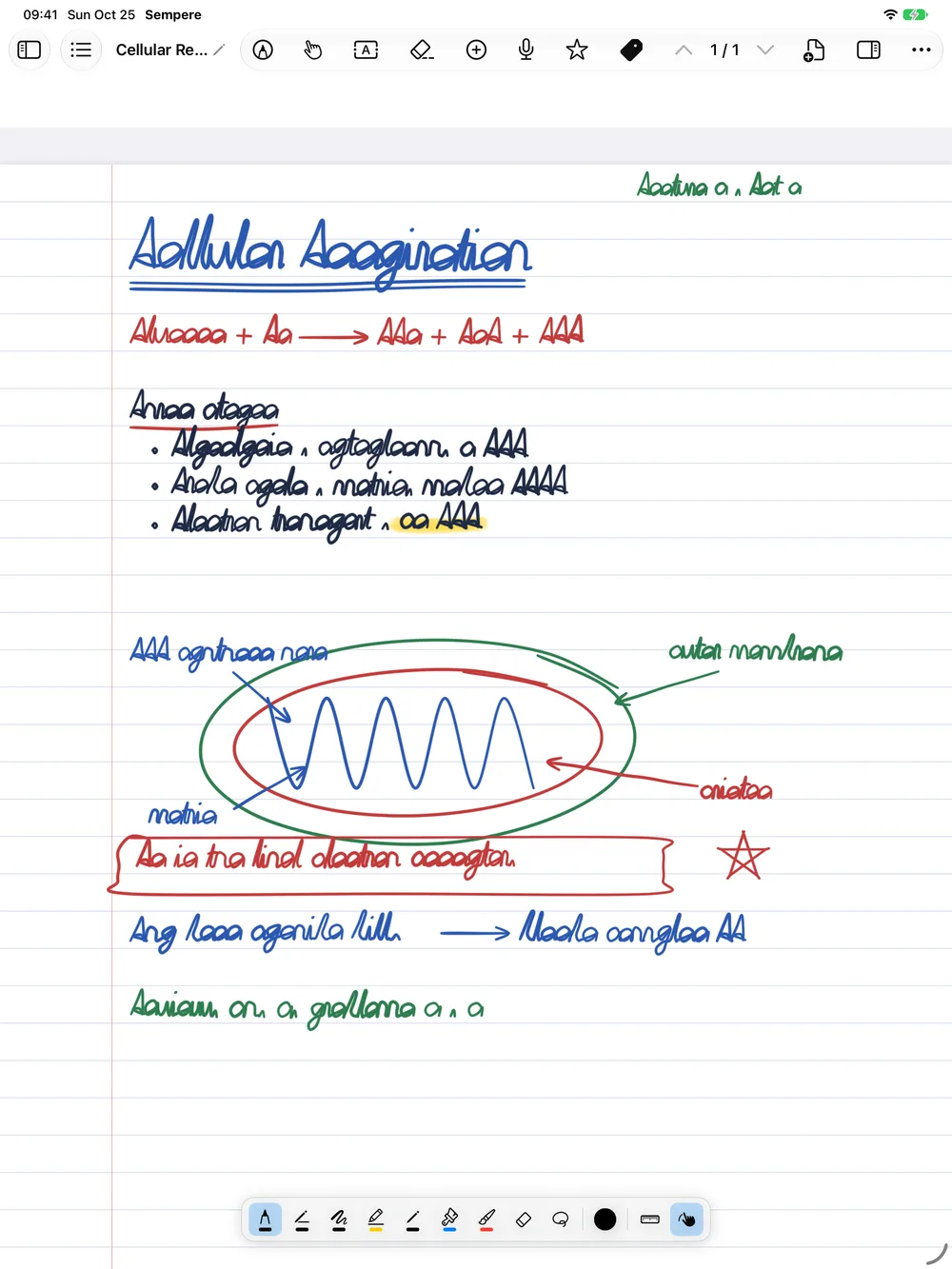
- The note opens in Reading mode. Tap Annotate (the pencil in the note’s toolbar) and write. On an iPad, touching the page with an Apple Pencil switches to Annotate by itself.
There is no Save button. Every change is saved as you go, encrypted, and kept as a restore point in the note’s version history.
The three modes
Every note view, on every device, has two buttons in its toolbar, Annotate and Hand. At most one is lit; tap the lit one again to go back to Reading.
| Mode | What touches do |
|---|---|
| Reading (neither lit) | Scroll and zoom. Nothing is drawn or moved by accident. |
| Annotate | Draw with the tool selected in the palette at the bottom. |
| Hand | Select, move and resize items: pictures, text boxes, equations, recordings. Nothing draws. |
The drawing palette shows only while you annotate. Writing tools explains it.
Name it, file it
- Tap the note’s title to rename it.
- Use Tags in the toolbar to add tags, and the note’s menu in the list to Move to Notebook…. See Notebooks and tags.
Find it again
Sempere reads your handwriting on the device, so a word you wrote today is searchable in a moment. Type it in the note list’s search field. See Search.