 Sempere
Using Sempere
Pages, paper and zoom
Paged and pageless notes, adding and moving pages, paper styles, and zooming.
Paged or pageless
Every note has a layout, chosen in the New Note sheet:
- Pages – Letter (the default) or Pages – A4: separate sheets, like a notebook. Good for printing, PDFs and lecture notes.
- Pageless – Letter width or Pageless – A4 width: one page that grows as you write. Good for mind maps and long sketches.
To change it later, open the note’s ⋯ menu ▸ Pages and choose Switch to Pageless Layout or Switch to Paged Layout (⌃⌘L on the Mac). Your ink stays where it is. The default for new notes is in Settings ▸ Writing ▸ New Notes ▸ Layout.
Working with pages
The Pages menu (in the ⋯ menu on every device) has the actions below. On iPad and Mac the toolbar also has Add Page (tap to add a page after this one; press and hold for the other page actions) and a Show Pages button.
- Add Page After This One and Add Page at End;
- Insert PDF Pages…, to add pages of a PDF to write on (the label says where they go);
- Duplicate Page and Delete Page (a note always keeps one page); Undo Delete Page brings a deleted page back;
- Show Pages (Hide Pages while it is open): a strip of thumbnails. Tap one to go there; drag to reorder. On the iPhone it is a sheet.
Paged notes scroll continuously from one page to the next. On the iPhone, in Reading, a sideways swipe turns the page, and a bar at the bottom shows “n / N” with previous and next buttons (it gives way to the palette while you annotate).
On the Mac: Previous and Next Page ⌘[ ⌘], Add Page After This One ⇧⌘A, Add Page at End ⌥⇧⌘A, Duplicate Page ⇧⌘D, Delete Page ⌥⌘⌫, Undo Delete Page ⌃⌘Z, Show Pages ⌃⌘T.
Paper
Open ⋯ ▸ Paper… (⌥⌘P on the Mac). The New Note sheet’s Paper row opens the same picker, with Use This Paper.
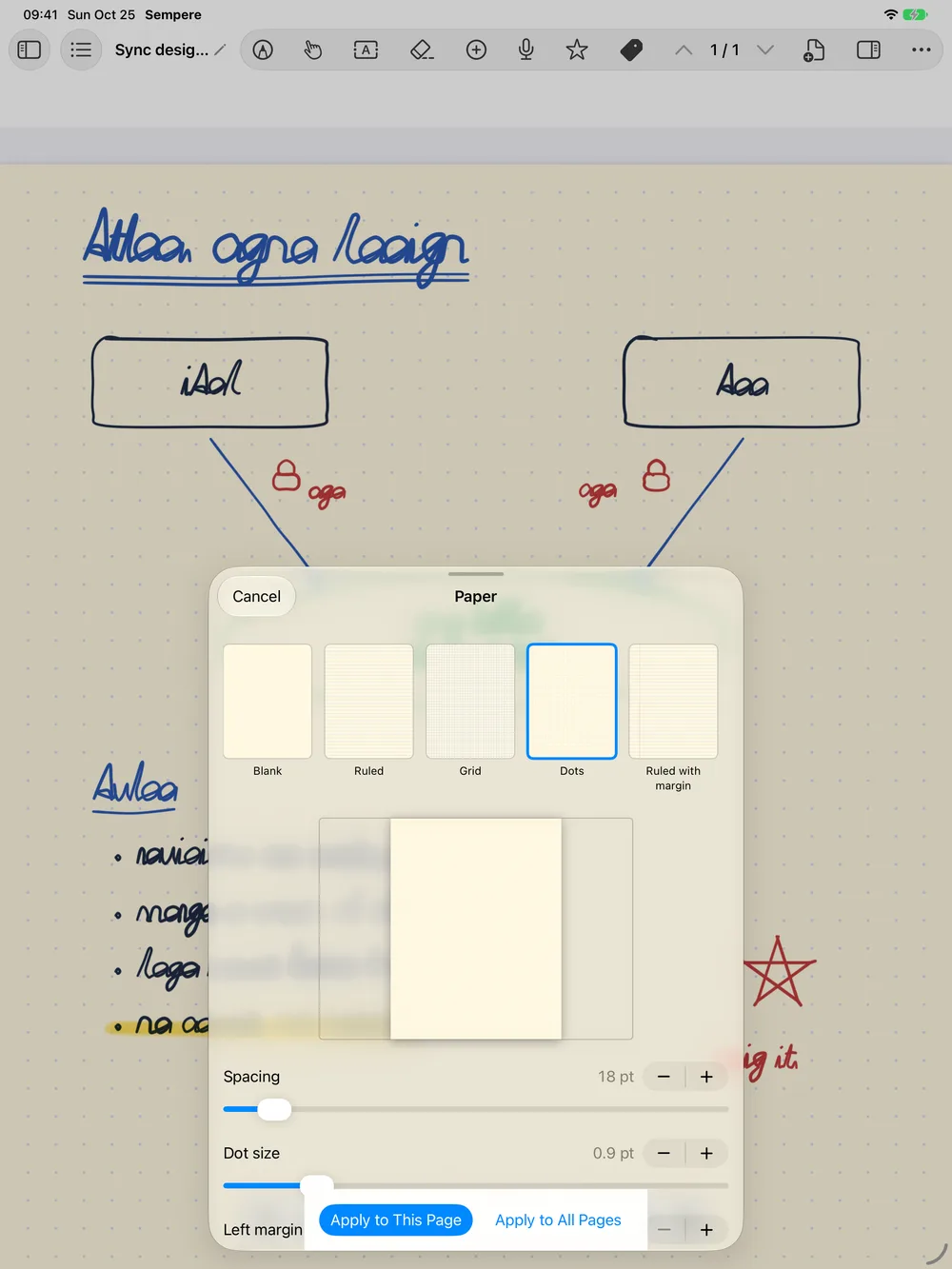
- Kinds: Blank, Ruled, Ruled with margin, Grid, Dots, Isometric dots, Isometric grid, Cornell, Music staff.
- Adjust each kind: line spacing, line width, dot size, margins, and for Cornell the cue column and summary area.
- Colors: the page (White, Cream, Dark or a custom color) and its lines, margin and dots. Reset to Defaults undoes your changes.
- Apply: Apply to This Page, Apply to All Pages, or Use as Default for New Notes.
New notes start on Ruled paper until you choose another default.
Zoom
- Pinch to zoom, up to four times the width that fits the screen. A pinch that ends close to the fitted width snaps to it.
- You can zoom out to half the fitted width.
- Mac: View ▸ Zoom In ⌘=, Zoom Out ⌘-, Fit Page Width ⌘0, Actual Size ⌘1, or pinch on the trackpad.
Because ink is stored as vectors, it stays sharp at every zoom.
Dark pages
Settings ▸ General ▸ Note Pages shows pages Light (the default), Dark, or to Match App. Dark pages are for the screen only: notes are stored and exported as on light paper.