 Sempere
Using Sempere
Notebooks, tags and favorites
Nested notebooks, tags, favorites, sorting, and Recently Deleted.
The sidebar lists All Notes, the Inbox (where quick voice notes land), Favorites, your Notebooks and Tags, and Recently Deleted. After a recognition run, Recently Recognized appears and lists notes whose handwriting was read in the last seven days; it goes away when there are none.
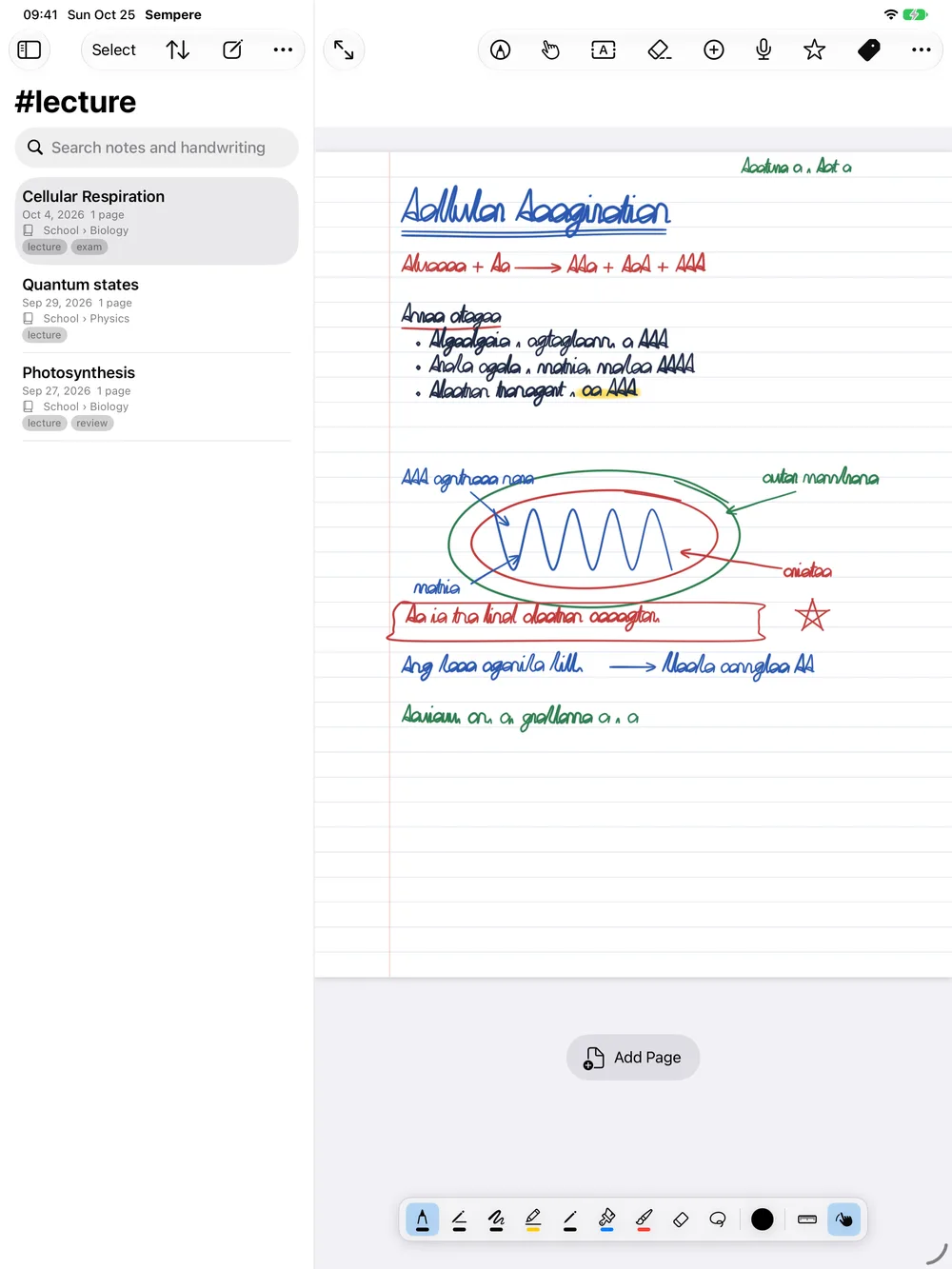
Notebooks
A note belongs to one notebook, or to none. Notebooks nest as deep as you like: a notebook named School/Math sits inside School.
- Create one from the sidebar’s More menu ▸ New Notebook, from the All Notes row’s menu ▸ New Notebook…, from a notebook’s menu ▸ New Notebook Inside…, or with File ▸ New Notebook… (⌃⌘N) on the Mac. Type a name; use
/for levels. A new notebook stays in the sidebar while it is empty. - Rename or move with a notebook’s menu: Rename or Move… (edit its whole path), Move Notebook To…, or Move to Top Level. Or drag it onto another notebook, or onto the Notebooks heading. Notes inside go along.
- Delete an empty notebook with Delete Notebook.
- Export everything in it with Export Notebook….
To file a note, use its menu in the list ▸ Move to Notebook…, drag it onto a notebook in the sidebar, or pick the notebook in the New Note sheet.
Tags
A note can have any number of tags. Add them with the Tags button in the note’s toolbar, from the note’s menu in the list (Add Tag…, Remove Tag), or on the Mac with Note ▸ Edit Tags… (⌥⌘T). Tags ignore case: Exam and exam are the same tag. Select a tag in the sidebar to see its notes.
If two devices change a note’s tags at the same time, an added tag wins over a removed one, so a tag is never lost by accident.
Favorites
The star in the note’s toolbar (Add to Favorites) puts a note in Favorites. Favorites show a colored star in the note list, and the list’s Sort menu can show them first.
Sorting and selecting
The note list’s Sort menu sorts by Date Modified (the default), Date Created or Title, and Favorites at Top puts starred notes first. The sort order and Favorites at Top are remembered on each device. Select lets you pick several notes, for example to export them. On the iPhone, Sort and Select are in the list’s ⋯ menu. Each row also shows small icons for the pictures, equations, video, audio and PDF pages a note holds.
New notes get a title from the date and time. Settings ▸ Writing ▸ New Notes ▸ Title offers other formats, or Custom with your own pattern (for example yyyy-MM-dd HH:mm).
In note titles, notebook names and tags, typing : and two letters (:smile) offers emoji (arrow keys to choose, Return or Tab to insert, Escape to close), and a closed :smile: becomes the emoji.
Recently Deleted
Deleting a note (Move to Recently Deleted, a swipe, or ⌘⌫ on the Mac) moves it to Recently Deleted, on every device. Open Recently Deleted and choose Restore to bring it back. Deleted notes stay in the vault; the app has no command that erases a note for good, and its history remains in the vault’s files.